01Data Manager · Quick Properties
Reduce repeated
property editing.
Work through allowed properties in searchable project tables, exchange values with Excel and reopen saved views for recurring tasks.
See property editingBring property editing, Excel exchange and project-data checks into your Plant 3D workflow. Reuse your setups, review proposed updates and keep drawing revisions coordinated — from one ribbon inside Plant 3D.
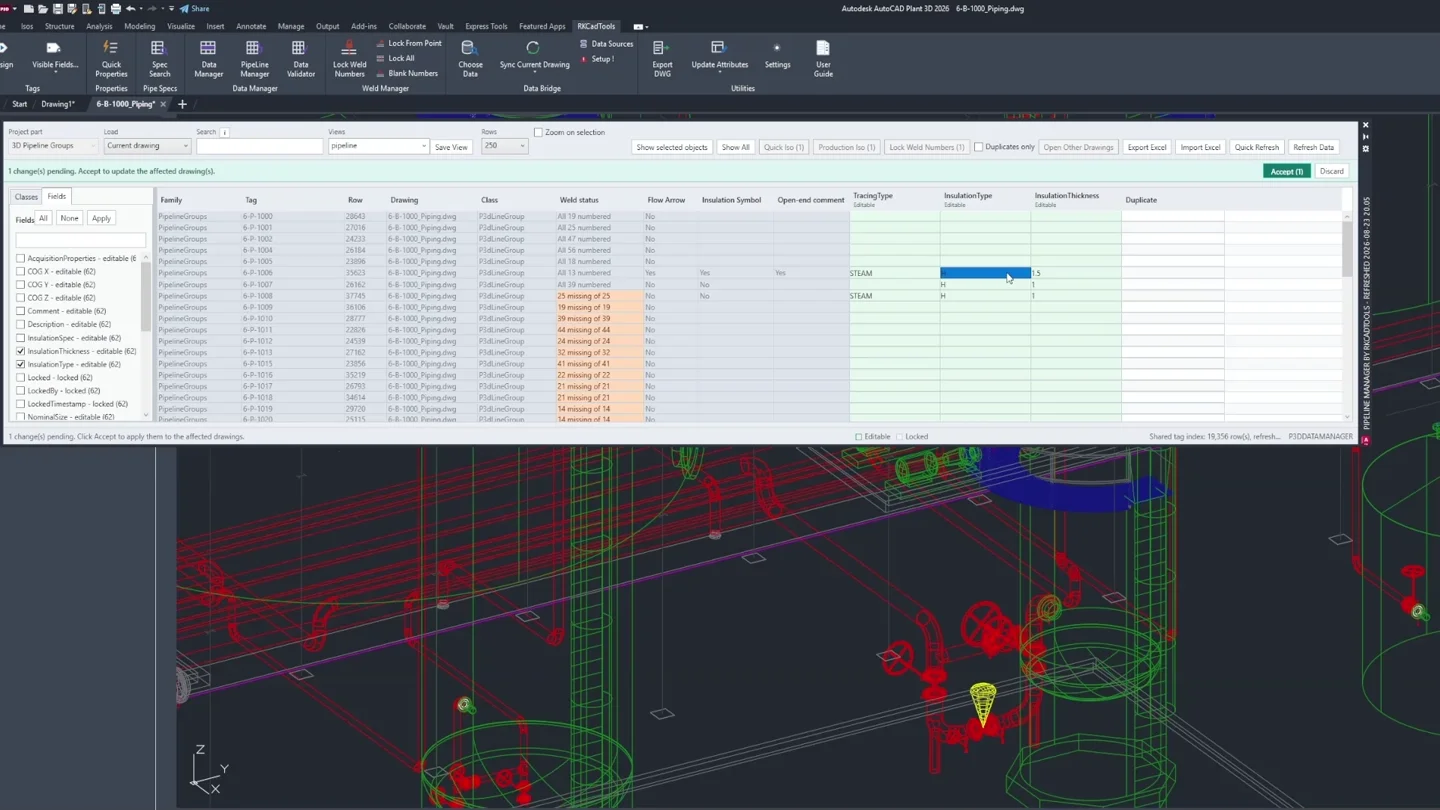
Review pipeline groups and prepare selected lines for isometrics.
Open the tools from a dedicated ribbon tab.
Each tool explains its drawing scope and setup.
Use previews where available before applying updates.
Edit project data in focused tables, reuse configured workflows and inspect differences before deciding what to change. Choose a task below to see it in practice.
Work through allowed properties in searchable project tables, exchange values with Excel and reopen saved views for recurring tasks.
See property editingCompare P&ID, 3D and external data to locate discrepancies, missing keys and duplicates. Inspect the affected objects and decide which values to correct.
See a data comparisonReuse saved field mappings and matching conditions for recurring data updates. Review old and proposed values in the sync preview before applying changes.
See the sync previewFind unconnected off-page connectors, inspect source and target details, and connect or disconnect pairs.
See connector reviewIsolate the area you need with Clipper, save useful regions and display property values with Color Rules. Read the active legend as you inspect the model.
See model isolationRecord revision notes once, then use Save & Sync to update configured title blocks. Retain the full drawing history as older entries move beyond the visible revision slots.
See revision managementAlso included: P&ID Palette Builder, Spec Browser, Pipeline Manager, drawing lists, reports, DWG export, CrossNavigation and Linked P&ID Publish. Beta features, including weld numbering, are identified in the feature guides with their scope and limitations.
See all tools →Real RKCadTools screens, with the next step explained. Choose a function, then browse its screenshots to see the different stages of the workflow.
Data Validator
Compare selected properties using matching keys. The result list helps you locate differences that need a decision.
You remain in control of the correction. A matching value alone does not establish that the source data is correct.
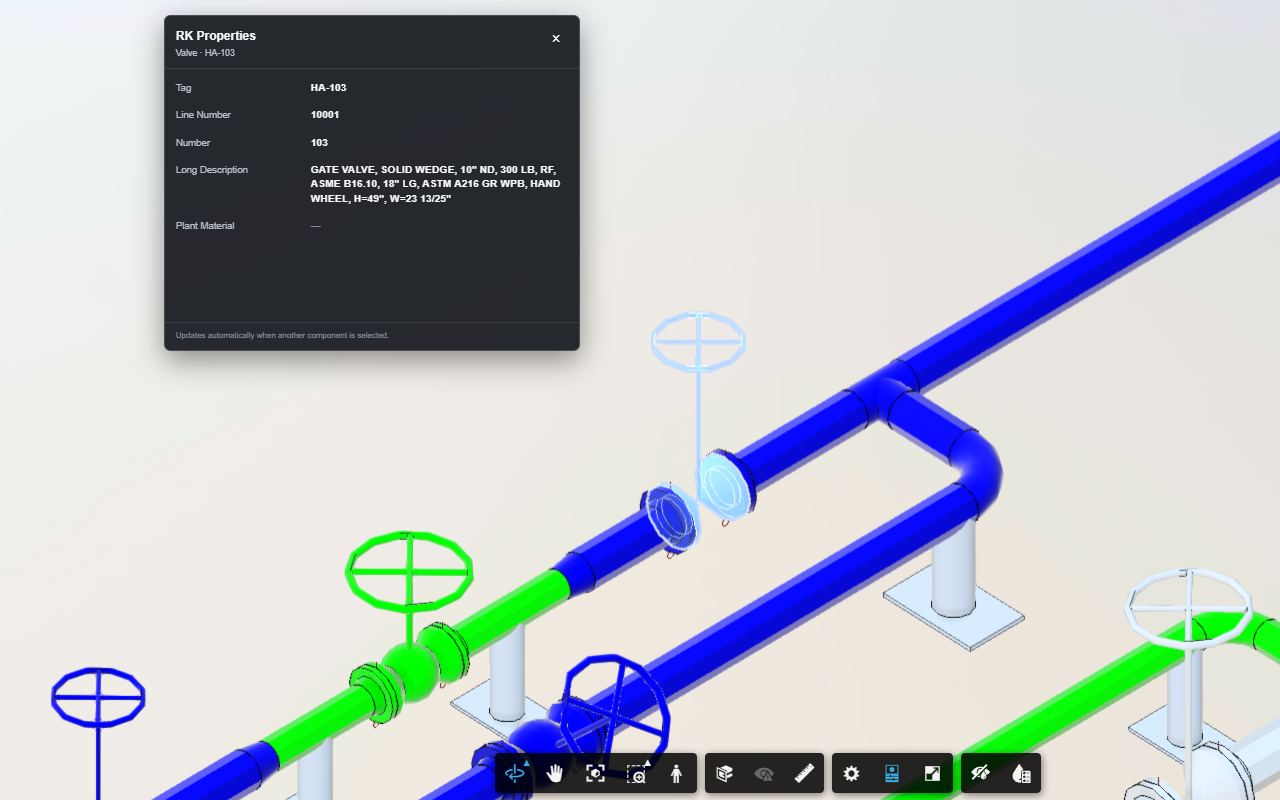
The free ACC Bridge browser extension brings the fields you choose into ACC Model Coordination, ACC Docs and Autodesk Viewer. Follow a matching component into your interactive P&ID or Plant 3D.
Browser features are free.
Navigation into Plant 3D requires RKCadTools with a valid licence.
Built by a Plant 3D production designer for the routines that come up on engineering projects.
Download the Windows installer. Close Plant 3D and run setup for your supported versions.
Open the RKCadTools activation window. Start the 15-day trial and confirm the email to create your account.
Use a copy of your project. Start with one workflow, review the results and follow its guide when setup is needed.
AutoCAD Plant 3D 2024–2027 on Windows · No payment details required · The trial does not become a paid subscription automatically.
Continue for €599 per user / year, excluding VAT. One active computer per seat; reassign it when your workstation changes. View pricing and buy licenses →
Tell us what you want to do, your team size and the Plant 3D versions you use. We will help answer your questions.
contact@rkcadtools.com ↗Yes. RKCadTools is a Windows plugin with its own ribbon tab inside AutoCAD Plant 3D. The individual tools specify whether they apply to P&ID, 3D Piping or other drawing workflows.
Some workflows work from the current selection or project data. Others need mappings, comparison keys, profiles or title-block configuration. The feature pages and guides explain the requirements for each tool.
Data Manager lets you review pending edits, Data Bridge provides a sync preview, and Data Validator reports issues for review. Optional Data Bridge automation can apply mapped values without a preview, so review the configuration before enabling it.
The trial does not convert into a paid subscription automatically. To continue with the licensed plugin, choose an annual per-seat subscription. View current pricing and licence details.
ACC Bridge browser features are free. Navigation from the browser into Plant 3D requires RKCadTools with a valid licence. Other free CAD administration tools are available separately on the website.